Overview
Second Loop is a live coding environment for your FTC robot, built for rapid iteration.
It is easy to set up: no Android Studio, no Gradle, no complicated steps. You talk to the robot from your laptop, and it acts on each command right away.
Want a faster flywheel, a gentler turn, or a different gamepad mapping? Change it while the robot runs and see the result in seconds, with no waiting to rebuild, redeploy, and restart.
You try ideas and tune your robot much faster, and get more out of every practice session.
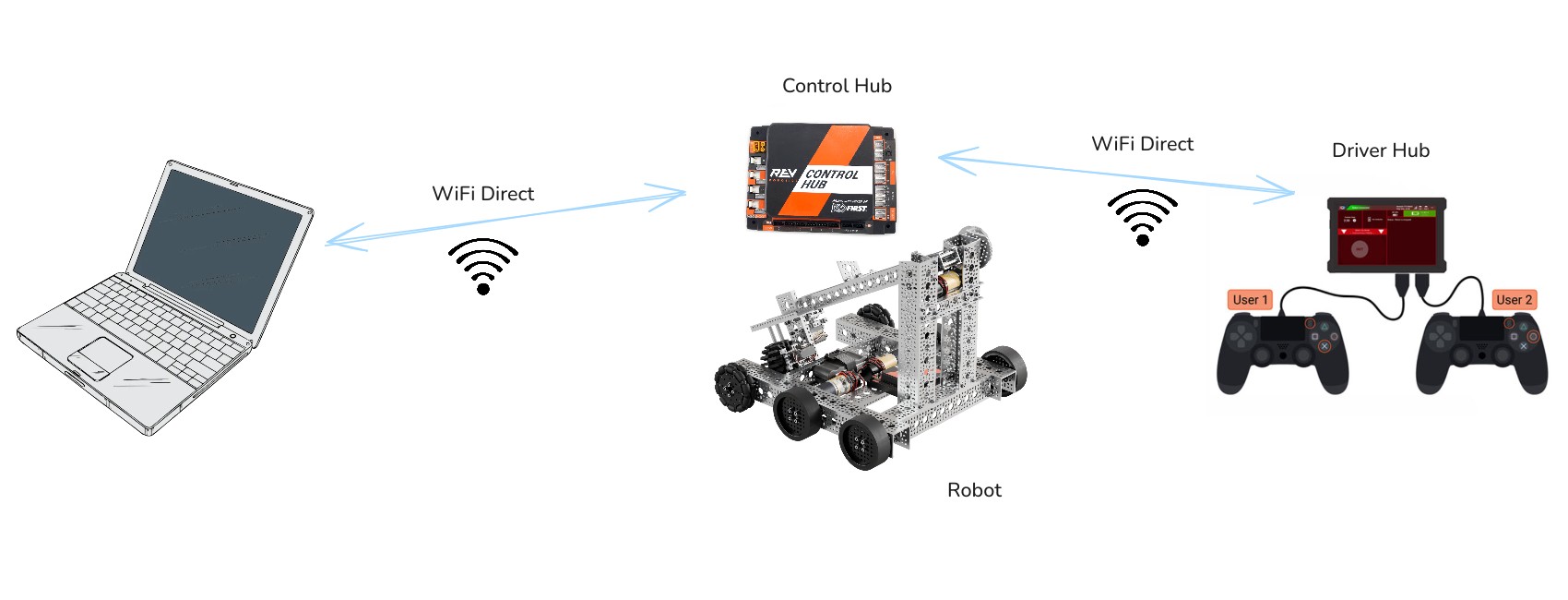
On a computer with a working Internet connection, download SecondLoop.java
and secondloop.py from the Second Loop repository.
Next, connect the computer directly to the robot's Control Hub. Use OnBot Java to upload the Java file, then press Build. When the build finishes, select the Second Loop TeleOp program on the Driver Hub and press INIT, then START.
The telemetry on the Driver Hub shows the address to connect to:
Ready at 192.168.43.1:9001 (0 clients)
Now run secondloop.py on the computer. It should detect the setup
automatically:
$ ./secondloop.py
Second Loop REPL
user=>
Type at the user=> prompt. Each line runs on the robot as soon as you press
Enter, and the result appears below it. Use the arrow keys to edit the line
and to recall earlier ones. To quit, press Ctrl+D on an empty line.
Info
History search, the full list of keys, and other details are covered in the REPL reference.
First, ask the robot for its battery voltage:
user=> (battery/voltage)
12.84
The answer comes from the robot itself, in volts.
Next, show a message on the Driver Hub:
user=> (telemetry/add-line "Hello from my computer")
nil
user=> (telemetry/add-line "Battery" (battery/voltage))
nil
The messages should appear in the Driver Hub's telemetry. They stay there until you clear them:
user=> (telemetry/clear)
nil
A loop repeats a few lines. This one runs three rounds, one per second, and then stops on its own:
user=> (loop [i 0]
         (when (< i 3)
           (telemetry/clear)
           (telemetry/add-line "tick" i)
           (time/sleep 1)
           (recur (inc i))))
nil
The Driver Hub shows tick 0.0, then tick 1.0, then tick 2.0, one second
apart.
If a motor is connected, such as a flywheel that launches artifacts, you can
control it from the prompt. Assuming the motor is named flywheel in the robot
configuration, this sets its direction and gives it power to spin:
user=> (motor/set-direction "flywheel" :reverse)
:reverse
user=> (motor/set-power "flywheel" 0.8)
0.8
And this stops it:
user=> (motor/set-power "flywheel" 0)
0.0
Next, we move on to a more complex example with a real game loop: driving a mecanum drivetrain from the prompt, then handing control over to the gamepad.